

Setting the map location of a listing

Matrix™ Add/Edit - Mapping a Listing
The Matrix system will automatically generate the Latitude and Longitude for your listing based off the property address you have entered. The listing agent is still required to take a moment and verify the pin is in the correct location on the map.


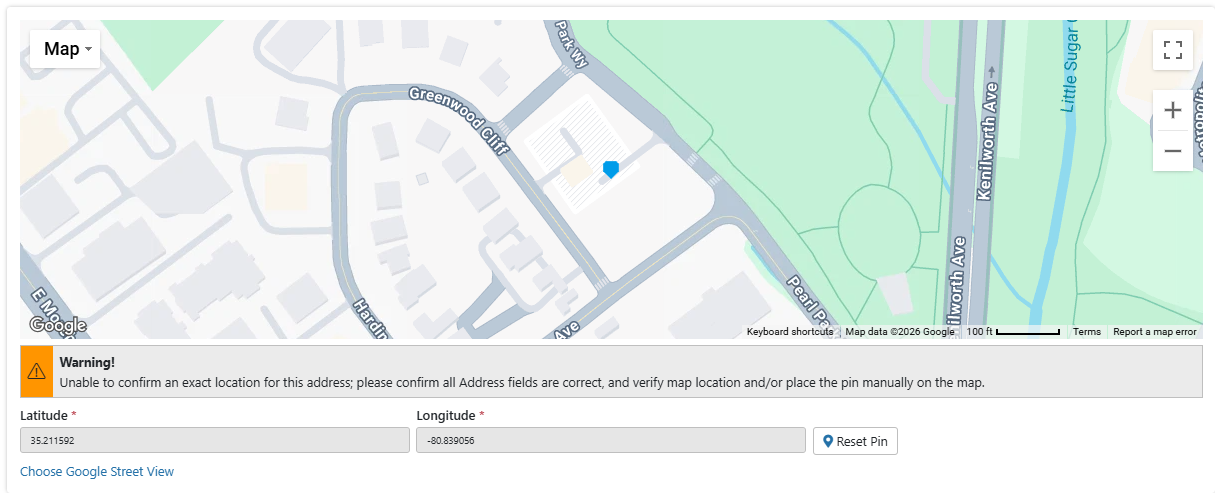
For some properties you will see a warning like the one above, indicating that Matrix attempted to place the listing on a map but did not get a 100% match. Agents should always verify the map location of their listing is correct, but it is especially true when this message appears.
If the map automatically populates in the incorrect location and adjustments are needed, you just need to adjust the location pin on the map. You can achieve this by clicking the pin icon and dragging it to the correct location, or you can click on the map and drag it under the map pin. If the location suggested by Matrix is very far from the correct one, you can zoom out using the "-" icon at the top left of the map. You can also make the map fullscreen for an overall larger view. Once the pin is over the correct property you are all set - you can click the "Submit" button to save the change or you can continue entering or editing data in your listing as needed.


